08 January 2018
Goodbye D2L
Today is the final day that D2L is available for Cosumnes River College, so I am writing a final post in my D2L blog. The calendar year 2017 was a transition year for my college, when our faculty could decide when to start using our new learning management system at a time that worked for them. This blog will no longer be maintained but will not be removed.


08 August 2016
Create an Export File
If you are planning a move to a new learning management system, it might become necessary to export course files from D2L so that they can be imported into the new system. Exported files do not expire.
The embedded video demonstrates the following steps:
The embedded video demonstrates the following steps:
- On the Edit Course page, click on the link to Import / Export / Copy Components.
- Select the option to Export Components (make sure the check box to include course files is selected) and click Start.
- Select All Components and then click Continue a couple of times.
- Click Finish and then the link to download the export file.
- Note that you may want to rename the downloaded file if you are going to download multiple courses.
Note: No import process is perfect, so you will be better served by importing your D2L course into a sandbox course in your new system instead of directly importing it into a course that will be used with students.
04 December 2015
Use the event log to recover old grades
Let's say you change the points possible for a grade item from a higher value to a lower value. If the grade item is set so scores cannot exceed the points possible, the scores for students will be lowered to that new value. To see the original scores, view the Event Log for that grade item:
- On the Manage Grades page, click the action menu for the grade item and click on Enter Grades
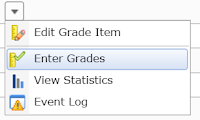
- On the Grade Item page, click the action menu for the item name and then click Event Log - this opens in a new window and shows the original score for each student for that grade item


09 November 2015
Options for group discussion instructions

This becomes a challenge for forums that have multiple topics with the same description. For example, a class might be divided into dyads or triads and each group needs its own discussion topic. To make that description easily visible to each topic can be done by copying and pasting into the topic description for each of the fifteen to twenty (or more) topics for that group. (The main blog entry on groups has more information on group options.)
Another option is to add the discussion instructions as a thread and simultaneously post that thread to all of the discussion topics within the group forum. This is only an option when creating a new thread as part of the Posting Options at the bottom of the Compose window. The demo video shows how to do this.
20 October 2015
Excusing a Student's Grade
The option to drop ungraded items can be used to excuse a particular assignment from a student's grade in a class. The assignment still appears on the Grades page, but without a score it will be excluded from the final grade calculation.
25 August 2015
One-on-one Groups for Private Conversations inside D2L
Groups and discussions tools can be used to set up private conversations between instructors and students inside a D2L course offering.
24 August 2015
The Pearson Widget and D2L
It is now possible to add a widget to connect your course offering in D2L with the MyLab product from Pearson.
12 August 2015
My Courses Widget Includes All Roles and Semester

If the current choice makes more than 50 course offerings appear, the user will need to use the course offering search. All course offerings that a user is enrolled in and can see are always available via the "Select a course..." drop-down menu on the minibar.
03 August 2015
Broken Insert Stuff for YouTube
YouTube changed its settings for allowing other web services to search and embed videos, and as a result we are currently unable to use the YouTube tool in the Insert Stuff dialog. D2L is working on a fix but it will not be in place before spring 2016.
The workaround is to copy the embed code from YouTube's page and paste that into the Enter Embed Code tool in the Insert Stuff dialog. Here are the steps:

The workaround is to copy the embed code from YouTube's page and paste that into the Enter Embed Code tool in the Insert Stuff dialog. Here are the steps:

- On the web page for a video in YouTube, click the Share link and then Embed.
- The embed code is automatically selected, so you can copy it.
- In D2L, click the Insert Stuff button in the toolbar for a text box (news item, content file, etc.).
- Choose the Enter Embed Code tool and paste your copied embed code.
- Click the Next button to preview and then the Insert button.
22 May 2015
Audio Files and D2L
Like video, music and audio files are best made available via a streaming media server and not uploaded directly to a D2L course offering. They can then be embedded directly into a D2L web page (including quiz questions and answers, content files, news items, and grade feedback). A good option is 3C Media Solutions.
24 March 2015
D2L Email, Outlook, and Regular Effective Contact
Email is one of the tools that instructors can use to conduct regular effective contact with students in their online classes, but it can be harder to document the use of that tool for that purpose as emails sent from inside D2L are not easily tracked. A rule in Outlook as well as the consistent use of keywords in emails sent from inside D2L can make this tracking easier.
25 February 2015
From where did students complete a quiz?

This page show the time the quiz attempt began, when each question was saved, and when the quiz was completed. There is a check box to show the IP address for these events.

06 January 2015
Bring back the Grid View in discussion
After listening to feedback from its clients (including Los Rios), D2L has reintroduced Grid View for discussions. This was removed in the update that was applied in Los Rios in summer 2014. Faculty who grade discussion participation were most likely to express concern about the removed feature. Now that it has returned, we are again able to choose personally how we view discussion and can manage assessment in the ways we did prior to summer 2014.
01 January 2015
Dropbox Due Date and End Date
There are two "closing" dates that can be set for a dropbox folder:

 Both dates are optional, and the system will not allow an end date to be set before the due date. If a student submits a file between the two dates, the list of submissions indicates how late the submission was.
- The Due Date is the date when submissions are due (this is the date that appears automatically in the course calendar)
- The End Date is the date when the dropbox folder is no longer accessible to students (this date does not appear in the course calendar)
 Both dates are optional, and the system will not allow an end date to be set before the due date. If a student submits a file between the two dates, the list of submissions indicates how late the submission was.
16 December 2014
See what a particular student sees on the Grades page
To see what a particular student sees when that student clicks on the Grades
link, follow these steps:

- Go to Grades and click on the Enter Grades link.
- Click on the name of a student - this will show you all of the grades for that student in an editable format, so you could provide feedback for that student.
- Click on the action menu next to the student's name and select Preview - a new browser window opens with that student's view of that student's grades.
Rubrics, Dropbox, and Grades
Rubric assessment does not carry through to the grades tool. The score does (and comments can) if you use it as a scoring rubric but not the rubric assessment data. So linking the same rubric to a dropbox folder and its associated grade item *will not* automatically the rubric data from the dropbox folder to the associated grade item. Students can see rubric data but they have to look at the feedback within the dropbox tool. If you want the rubric data visible on the grade tool you will need to provide that data manually. Provide overall feedback for the grade item directing students to see rubric assessment info within the dropbox tool.
15 December 2014
Another Way to Do a Letter Final Grade
Though you can create a grade scheme that displays the total points earned as a letter grade instead of a percentage, you may want to allow for another way to allow for the "Smith factor" besides creating additional hidden grade items or changing extant grades as described in this post. You can also create a second grade item that is solely for the course's letter grade.
12 December 2014
Copying course material and notifications
Be aware that when copying material into a course offering that is active, any users in that course offering who subscribe to notifications will receive notifications as appropriate for the new materials as soon as they appear. This can confuse students if you copy a News item, for example, that includes information about upcoming class events or due dates and you plan on editing those dates after you copy the News items over. (Users who sign up for News notifications receive an alert immediately when a News item is posted.) Similar situations will occur with Dropbox folders and Quizzes, which provide notifications two-days before end dates or due dates.
The decision to receive notifications is the student's, and they can choose text messages and/or email. Safer options are either to change dates and/or content in the source course offering before copying stuff over or creating items manually.
The decision to receive notifications is the student's, and they can choose text messages and/or email. Safer options are either to change dates and/or content in the source course offering before copying stuff over or creating items manually.
02 December 2014
Bonus grade items in a weighted grading system
When working with a weighted grades system, any bonus items that are not part of another category should be standalone items and not part of a category (i.e., do not create a category that only contains bonus items). This is because each category in a weighted grade system must have a weight. For standalone bonus items, the weight should be the maximum amount of grade weight you want changed if students successfully complete those bonus items.
29 October 2014
Training videos from D2L
Earlier this semester D2L released free all of their training videos on how to use their various tools. The videos are captioned, effective, and listed alphabetically by tool title on the following web page:
https://community.brightspace.com/resources/videos
https://community.brightspace.com/resources/videos
Subscribe to:
Posts (Atom)