The Grader app allows instructors to download submissions to dropbox folders in their course offerings for offline grading. It is free and only available for the iPad.
28 April 2014


31 March 2014
Print Grade Report
The best option for printing a grade report for an individual student is via the User Progress tool, which can be accessed via Enter Grades, Edit Course, or the Classlist.

On the User Progress Page, click the Grades link and then the Print link. Click to expand the Grades Received header if you want all graded items to appear (you may have to click a link to Load More if there are more than ten items).

There is a button on this page to Print.
On the User Progress Page, click the Grades link and then the Print link. Click to expand the Grades Received header if you want all graded items to appear (you may have to click a link to Load More if there are more than ten items).
There is a button on this page to Print.
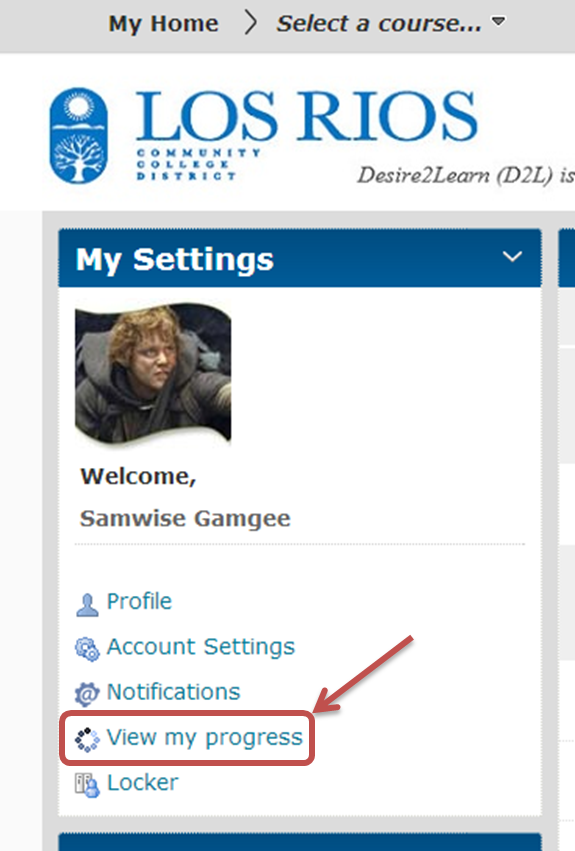
Note: Students can do this for themselves! They can access their personal progress reports via the View my progress link in the My Settings widget on their homepage.
21 March 2014
Small Logo Navigation Theme Available
A second navigation theme is available for CRC faculty that has a smaller logo and course title and thereby makes more web browser space available for course materials and content. This theme can be applied to any customized navbar, so instructors who have not yet done so will need to make a copy of the default navbar to apply this theme. The demonstration video shows how.
Note that changing the theme will not change any of the links that are on the navbar.
Note that changing the theme will not change any of the links that are on the navbar.
19 February 2014
View Student List by Class of Enrollment
In a course offering that has multiple courses grouped together, it is easy to view students by class of enrollment. This is especially useful when submitting grades at the end of the semester, as the online grades and rosters system only allows us to submit grades for one class at a time.
09 January 2014
Upload Videos to Google Drive and Embed in Desire2Learn
This is cross-posted on Greg's Google Blog
Video files can be uploaded to an instructor's Los Rios Google Drive and then embedded within a course offering on Desire2Learn. This video shows how to do this and includes an option to prohibit downloading by viewers.
Video files can be uploaded to an instructor's Los Rios Google Drive and then embedded within a course offering on Desire2Learn. This video shows how to do this and includes an option to prohibit downloading by viewers.
Subscribe to:
Posts (Atom)