16 October 2013

Move Videos from the V Drive to Los Rios Google Apps

Videos on the CRC streaming media server do not automatically display within Desire2Learn. The videos are still there but there are currently issues over how mixed-content pages appear in the browser. “Mixed content” means some content is delivered via an encrypted connection (all of the D2L pages are encrypted) and some content is not delivered via an encrypted connection (none of the pages on the district’s streaming media server are encrypted). This is a problem because a bad guy could sniff the data submitted via an unencrypted form (like an account number or password). The browser manufacturers have therefore added a way to alert users that a page has mixed content.

Users can allow mixed content to appear. The problem that changed recently is that Chrome and Firefox stick a tiny shield in the navigation bar that a user would have to click on to allow the mixed content. Internet Explorer shows a popup warning and is therefore easier to see. Safari does not have this issue.

Of course it is a bad habit for users to allow mixed content, so the best solution is to use a streaming media server that delivers content via an encrypted connection. Fortunately we have one in Los Rios Gmail and Google Apps. For instructors who have been using the CRC streaming media server, the best practice is to upload your videos to your Los Rios Google Drive and re-share them via the embed code you can copy there and paste into a Desire2Learn content topic.

I have made a video showing how to do this:


18 September 2013

Create a Single News Feed for Multiple Course Offerings

Desire2Learn does not have a way to create a single News item and share that with all of an instructor's course offerings. Instructors therefore have to create an item in each course offering or create it once and then copy it into each course offering. A workaround is to use a custom widget with a Twitter feed. The widget would have to be added to each course offering but it would allow an instructor to post something once (in Twitter) and have that appear many places (inside the Twitter widget on each course offering's homepage). The challenge will be for us to fit important information into fewer than 140 characters. ;-)

16 September 2013

Use Los Rios Google Apps to Create an Image Gallery and Share via Desire2Learn

This is cross-posted on Greg's Google Blog

The Google Drive application can be used to create an online image gallery with thumbnails that link to higher-quality images.


Customize the Student Resources link group

The Student Resources link group can be customized. The navbar must be editable, which means the default navbar has already been copied and applied.

11 September 2013

Release Final Grades and Show Current Grade

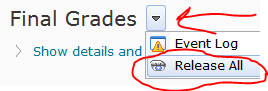
The final grade item cannot be seen by students until it has been "released":

Confirm your calculation options to make sure that students are seeing the correct information. Click the Settings link and then the Calculation Options tab:
At the bottom of the page, decide whether to drop ungraded items (this turns your "final" grade into a "current" grade instead). Also decide whether to keep the final grade updated. If you decide to drop ungraded items, you can rename the final grade item by clicking on its name (while in Manage Grades view) and typing a new name (e.g., "Current Grade" or "Grade as of Today").
If the “drop ungraded items” button is checked, then the points possible for the Final Grade is a sum of all the grade items for which that student has received a score. Here is an example with the drop ungraded items turned OFF: 
Exam 1 (100 points possible):
80
Exam 2 (100 points possible):
90
Final Exam (300 points possible):
- (not yet taken)
Final Grade:
170/500
 Here is the same grade book with drop ungraded items turned ON 
Exam 1 (100 points possible):
80
Exam 2 (100 points possible):
90
Final Exam (300 points possible):
- (not yet taken)
Final Grade:
170/200
 Spot the difference? In the second example, because the student has not yet taken the final exam, the Final Grade should instead be thought of as the “Current Grade” and perhaps renamed appropriately.
  • Click the Enter Grades icon for the final grade item. You can find this on the action menu for the item.
    • Click the Release All button. You can find this on the action menu for the Final Grades heading at the top of the page.