16 September 2014

Grading Matching Questions

I found a helpful web page that included this succinct explanation of how the grade options work for matching questions:
NOTE: In the Choices section, be sure to choose a grading option. 
Equally weighted (Recommended)
The points for the question are divided evenly among all the matches.EXAMPLE: If a matching question worth 5 points has five matches, and a student correctly matches three of them, the student will receive 3 points.
All or nothing
If the matches are not all correct, the student will receive zero points for the question. EXAMPLE: If a matching question worth 5 points has five matches, and a student correctly matches three of them, the student will receive 0 points.
Right minus wrong
The points for the question are divided evenly among the matches, EXAMPLE: If a matching question worth 5 points has five matches, and a student correctly matches three of them, the student will receive 1 point.
Thanks to our friends at the University of Wisconsin-Eau Claire for making this resource available.

11 September 2014

Exclude a grade item for a particular student

The points possible for the final grade in a course offering is the same for all students, as it is a sum of the points possible for all items that do not have the box checked to "Exclude from Final Grade Calculation." If you want to exclude a particular grade item for certain students, there are a couple of ways to handle this:

Drop Ungraded Items


On the Calculations Options page is a radio button to "Drop ungraded items." If this is selected, then the points possible for the Final Calculated Grade for an individual student will not include a grade item that does not have a score associated with it. To see this option, click on the Settings link on the Grades page and then the Calculation Options tab.
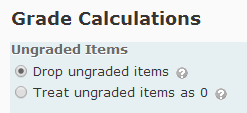


This means that different students will have a different points possible for the Final Calculated Grade.

Use Formulas


The other option is to create a Formula grade item for each possible situation. On the Manage Grades page, click on the New button, click on Item, and click on the Formula for the Grade Item Type. On the New Item page, you will need to use the Formula Editor to calculate the Points Received for this item. The Formula Editor dialog requires you to select each grade item you want to include as a variable in the formula and then select each operator as well. There is limited keyboard functionality, so be prepared to exercise your mouse pointer.


If you choose this option, do not release the Final Calculated Grade as it will confuse those students who do not have to complete all of the assignments in the class.

02 September 2014

Manual Enrollment

Our integration with PeopleSoft takes care of all official enrollment transactions related to students, including drops, but you can still manually enroll another user (student or faculty).

NOTE: The enrollment status for manually enrolled users must be changed manually and will not be changed based on any changes in the user's official enrollment status (i.e., a "Wait_listed" user will not be changed to "Student" if the student officially enrolls in the class; nor will that user be removed from a D2L course offering if the student does not officially enroll in the class).
  • On the Classlist page, click Add Participants and then click on Add an existing user
  • Type a name or username into the search box and click the Search button
    Note: A user already enrolled in your course offering will not appear on the search results page.
  • Click in the check box to select the correct user and assign a role in your course offering:
    • Student
    • Instructor
    • TA-Grader has access to the grades tool and can assign grades
    • TA- Discuss has access to the discussion tool and can create forums and topics
    • Leader - this role has the same privileges as an Instructor and is for club and organization accounts
    • Member - this role has the same privileges as a Student and is for club and organization accounts
    • Wait_listed - this role has the same privileges as a Student and is there to remind you that this user is not officially enrolled in your class (you can remove or change this user's role once the student's status is resolved)
  • For course accounts, a manually enrolled user must be assigned to a section (this does not apply to club and organization accounts)
  • Click the Enroll Selected Users button. Note that there is an option to send an enrollment email.

29 August 2014

Grading Discussion (since August 2014)

Grading discussion as you read appears no longer to be an option, which is quite frustrating. Here are the steps I plan to follow:
  1. Open two browser tabs, one on discussion and the other on grades
  2. In the grades tab, click on the action menu for the discussion topic’s grade item and select Enter Grades
  3. For each student who has contributed to that topic, a bubble appears in the Submissions column. Click on the bubble and a feedback window opens for that student for that grade item.
  4. The feedback window includes all of the posts made by that student within that topic and a place to type a score and feedback. Make sure to check the Published box so the score is transferred to the grade item when Save is clicked.
  5. In the other browser window, mark as read all the discussion posts that were just graded. Fortunately a topic can be searched for all posts by a student by typing the student’s name in the search box and then marking all results as read by clicking the action menu for any of the posts in the search results.

I guess I could grade in context by reading the posts in one window and then grading in the other.

11 August 2014

User Progress for Inactive Course Offerings

The active status of a course offering affects the ability to view user progress. When a course offering is inactive, the user progress data linked from the Classlist and View User Progress (linked from the Edit Course page) is limed. The specific data for each tool is always viewable.