15 January 2009

Use Images in Multiple Locations, Including Quizzes

You may want to use the images in multiple locations in your course, say in the content area as well as part of a quiz question. If you upload the image at the time you create the question, that file will not be available inside D2L for re-use. However, if you upload the image to your Manage Files area first, that image will be available as a course file anywhere inside your course offering, including in a quiz:
  • You may find it helps your organization to create a folder inside your Manage Files area for images (click the  button to create a new folder).
  • Enter the folder you created by clicking on its name and then upload an image to the folder by clicking the  button. You can upload multiple images simultaneously by packaging them together into a single .zip file. Once you upload the file, a button to unzip it will appear.
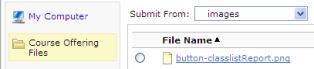
  • To display images anywhere in your course, use the Course Offering Files on the Submit a File dialog box and navigate to the location in your Manage Files area where you uploaded your images.

05 January 2009

Certain Characters in Filenames Cause Dropbox Problems

The following characters if used in a filename of a file that is submitted to the dropbox will cause the dropbox to be inaccessible by faculty:
 \ / : * ? " < > | 
Students will continue to be able to submit assignments even if the dropbox is inaccessible.

08 December 2008

Limit a Syllabus to Certain Students

Revised 11/2013

If you group students from multiple classes into the same course offering, you may want to show some content (like the syllabus) to students enrolled in a certain class. Use the release conditions to do this. Here are the steps:
  • When creating a new topic or editing an existing topic, click the Restrictions tab (this is the same tab that has the date restrictions)
  • In the Release Conditions section, click the button Create and Attach


  • Select Section Enrollment as the condition type in the pull-down menu that appears

  • In the Condition Details portion of the window, choose the section from the pull-down list - you will need to match the five-digit enrollment code that is part of the section name
  • Click Create and you will see your release condition at the bottom of this page.

  • Click Save and this content will only be visible to students who meet the criteria you selected.
After you create a release condition, it will be available for your use on any other item in your course offering. You can click the Attach Existing button to limit other content items, quizzes, dropbox folders, etc. You can copy release conditions from class to class, but this example will not work in any other class because the section code will differ.

04 December 2008

View Solution to Homework Submitted via Dropbox

If you have students turn in homework assignments via the dropbox and want them to see the solution after they submit, there are a couple of ways to do this:
Give the students the homework solution file as part of the feedback for the assignment. On the Leave Feedback page there is a button Add a File that you can click to add a file from your local computer that will only be visible to that student. You could wait to provide feedback to students until after the assignment is due if you are concerned about the early submitters sharing the solution file with their classmates.
Another option is to include the file as part of the grade item for that dropbox folder instead of as part of the dropbox folder feedback. This allows you to control exactly when the file appears; you may want to let students know in the Custom Instructions field for the dropbox folder where and when the solutions file will appear.. First, upload the file to your Manage Files area:
  • Click Edit Course on the navbar.
  • Click Manage Files and then click Upload
  • In the window that opens, click Browse to find your homework solutions file and then click Upload
Now your file is ready to be quicklinked from the grades area:
  • On the Grades page, click the Manage Grades button
  • Click on the Enter Grades icon for the item associated with the dropbox folder
  • Click Show details and overall comments
  • In the Overall Comments box, insert a quicklink to the course file you uploaded above - don't forget to click Save
If you do not want students to see the solutions file until after the assignment is due, you can make the grade item appear at that time:
  • While on the Manage Grades page, click on the name of the grade item associated with the dropbox folder to edit it
  • Select the Restrictions tab and choose a Start Date for the item's visibility - don't forget to click Save
A third option is to create a content topic that includes the homework solution and set the availability date for that item to take place after the assignment due date. As with the option to attach it to a grade item, you may want to let students know in the Custom Instructions field for the dropbox folder where and when the solutions file will appear.
Finally, you can use release conditions to display the homework solution automatically as soon as students receive feedback from you. One of the condition types is "Receive Feedback on Dropbox Folder." You can create a release condition using this type (D2L will prompt you to select a dropbox folder) and limit the content topic to students who meet this criterion.

01 December 2008

Students can Break a Dropbox Folder

If a student renames a file in the middle of submitting it to a dropbox folder, that folder is locked for the instructor only. All students, including the one who caused the problem, can still submit files, and the folder's availability will change as originally scheduled. If this happens, contact the help desk because Desire2Learn must be involved in the fix. No data is lost.