Showing posts with label Turnitin. Show all posts

28 August 2012

Download Turnitin.com Originality Reports

When a document is submitted to Turnitin.com via the dropbox, its contents become part of Turnitin.com's database. Instructors can access the Originality Report as long as a dropbox is visible, which will be three years. At any time an instructor can download the report by clicking the download button at the bottom of the Originality Report window.


This creates a PDF file for storage on a local computer. The file does not include any identifying information on the author, so including that as part of the filename will make finding this file easier. This can only be done one submission at a time.

04 May 2011

Solving the self-contact issue

There is an issue with Turnitin's originality report that prevents instructors from self-contacting. This happens when a source is identified as another student submission to the same instructor. This occurs only when using Turnitin via a dropbox with plagiarism detection enabled.

To get additional information on the original submission, the paper ID number is needed. The paper ID number can be found by clicking on the info button in the lower-left corner of the Turnitin window:
Then contact the Turnitin help desk. There are three ways to do this:
  1. Create a ticket online at http://turnitin.com/help/helpdesk.asp
  2. Email at TiiSupport@turnitin.com
  3. Phone at 866-816-5046 ext. 241
    Mon. - Fri. 6am-11pm Pacific, and Sat. - Sun. 2pm-11pm PDT

19 February 2010

Special Access for a Dropbox Folder

You can use the special access tool on the Restrictions tab of a dropbox folder to give individual students extra time to submit a paper. This is especially useful if you have plagiarism detection turned on for a folder and a student has submitted a file format that is not recognized by Turnitin.com. [VIDEO DEMO]

18 August 2009

Turnitin and the Dropbox


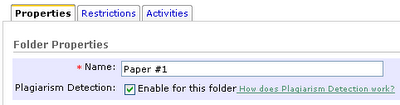
The Turnitin.com plagiarism-detection service is now integrated with the dropbox. This is a single switch on the Properties tab for a dropbox folder immediately underneath the folder name:

Turning this switch on means documents submitted to this folder will be checked for plagiarism as if the student or instructor had submitted it directly to Turnitin.com. The instructor can decide whether to show the Originality Report to students and whether to make the process automatic for all submissions or selectively. The bottom of the Properties tab includes a section "Plagiarism Detection Options" if this switch is on. Turnitin currently accepts the following file types for submission: MS Word (.doc), WordPerfect (.wpd), PostScript (.eps), Portable Document Format (.pdf), HTML (.htm), Rich Text (.rtf) and Plain Text (.txt). All files submitted to Turnitin must be text based. Papers which have been scanned must be sent through Optical Character Recognition (OCR) software before they can be submitted to Turnitin.
Once enabled and a report finishes processing, the folder list will show a color-coded label showing the percentage of plagiarized text in that document.


Note: If you allow students to do multiple submissions to the dropbox folder, Turnitin will treat subsequent submissions to the same dropbox folder as "revisions," meaning that those subsequent submissions will not consider the text from the original submission as a similar source.